Concept Clerk ★ Priority
Where you land
The Dashboard is the first thing you see whenever you log into CouncilAdmin. What it shows you changes as your council goes from freshly set up to actively running meetings.
If your council is new: the Getting Started panel
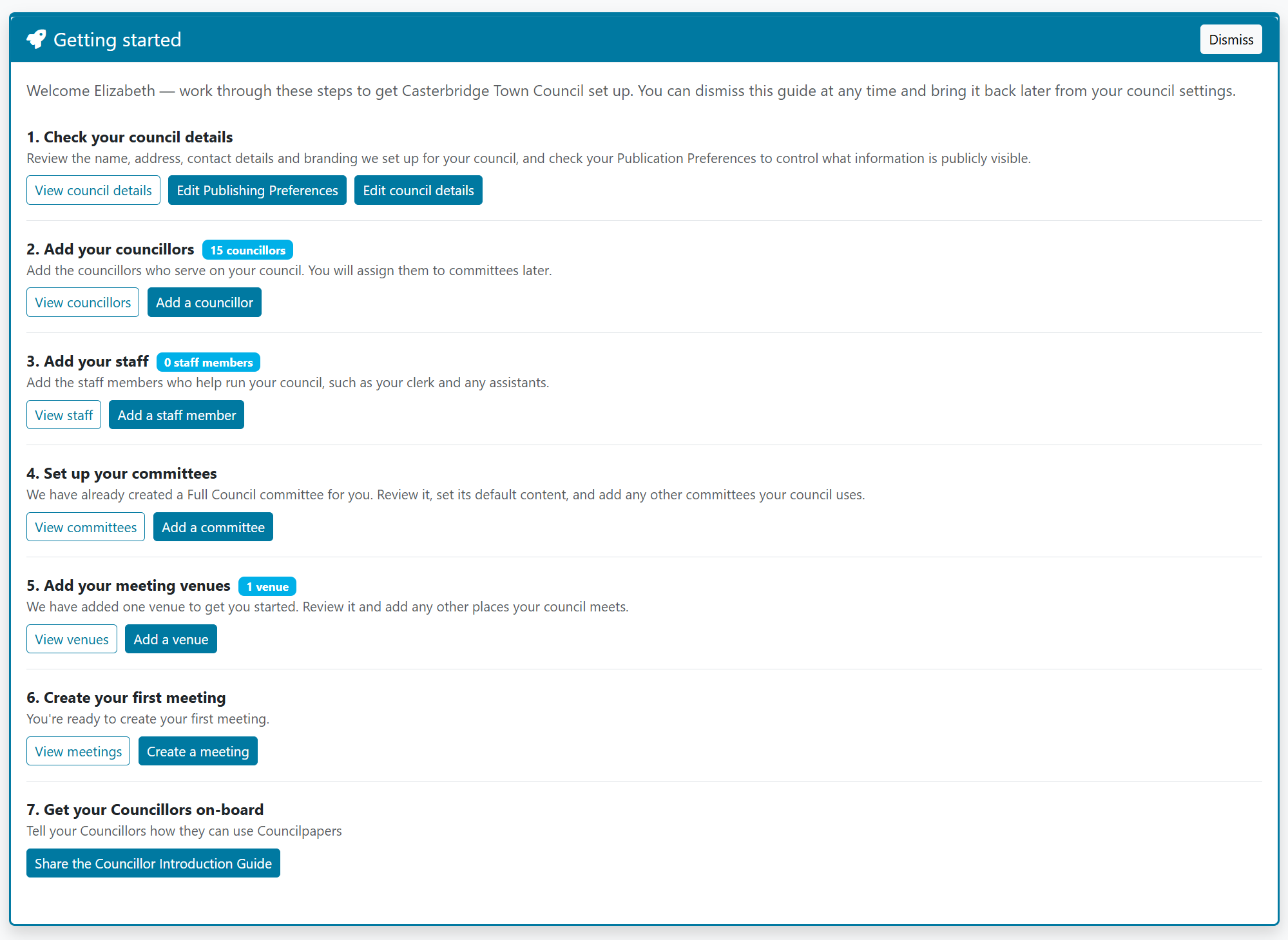
When there's still setup to finish, a blue Getting Started panel sits at the top of the Dashboard, walking you through the steps needed before you can run a meeting:
- Check your council details - review the name, address, contact details and branding, and check your Publication Preferences to control what's publicly visible.
- Add your councillors - add the people who serve on your council. You'll assign them to committees later.
- Add your staff - add the staff who help run the council, such as your clerk and any assistants.
- Set up your committees - a Full Council committee is already created for you; review it, set its default content, and add any other committees your council uses.
- Add your meeting venues - one venue is added to get you started; review it and add any others your council meets at.
- Create your first meeting.
- Get your councillors on-board - share the Councillor Introduction Guide so they know how to use CouncilPapers themselves.
Each step shows an outline button (View...) to see what's already there, and a solid button (Add...) to jump straight to adding one. Steps with existing content show a count alongside the heading - for example, "Add your councillors 15 councillors" - so you can see your progress without opening each section.
You can dismiss the panel at any point with the Dismiss button, and none of the setup steps are compulsory to complete in order. If you dismiss it and want it back, go to Council > Council Info.
Once you're up and running: the full Dashboard
Once your council has meetings in progress, the Dashboard provides you with a live summary of where things stand.
Last Meeting and Next Meeting
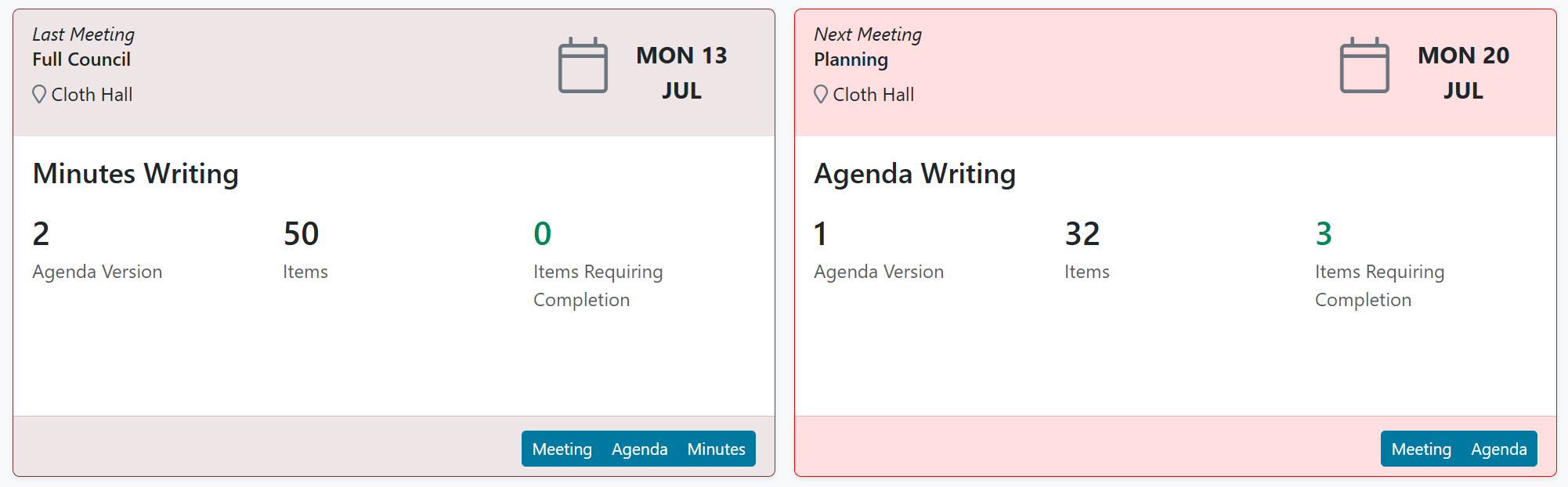
Two cards sit side by side:
- Last Meeting shows the committee, venue, and date of your most recent meeting, along with a Minutes Writing summary - the current agenda version, how many items it has, and how many still need attention before the minutes are complete. Buttons let you jump straight to the Meeting, Agenda, or Minutes.
- Next Meeting shows the same details for your upcoming meeting, with an Agenda Writing summary instead. There's no Minutes button here, since the meeting hasn't happened yet!
Recent Meetings and Forthcoming Meetings
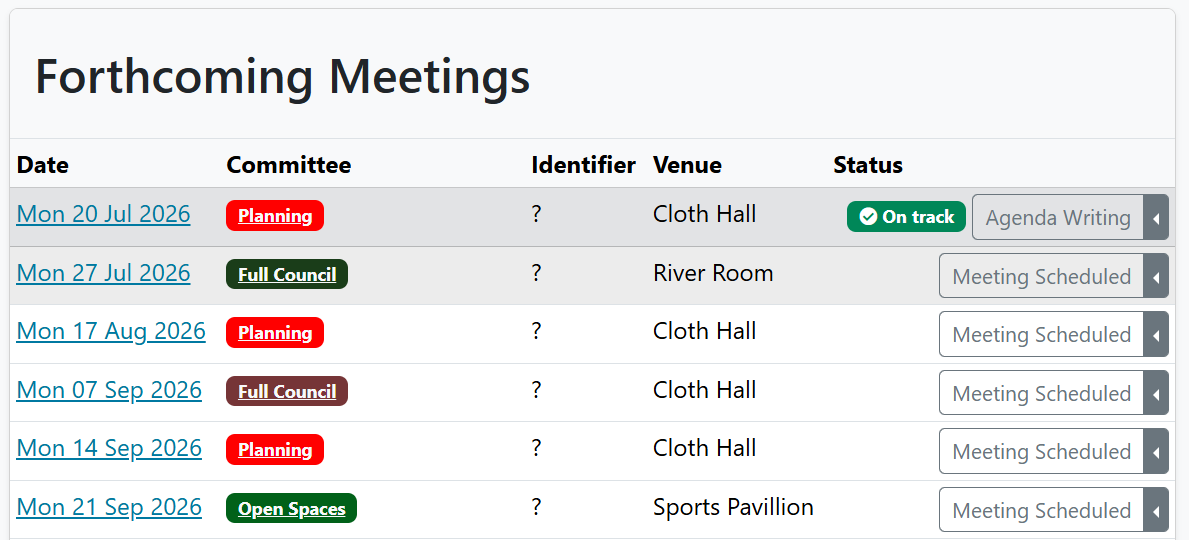
Below the two cards, two tables list your recent and upcoming meetings - date, committee (colour-coded to match that committee elsewhere in CouncilPapers), identifier, venue, and status.
The Status column is a shortcut menu, not just a label. Click it and a dropdown opens with links relevant to whatever state that meeting is currently in - what's offered changes depending on the status shown, so a meeting mid-way through minutes writing offers different links than one already published. Use it as a fast way to jump straight to the next thing that needs doing for that meeting, rather than navigating there manually.
As a forthcoming meeting approaches, a badge will warn you if it's agenda is due for publication in the next week, two days, or overdue. This is based on the Transparency regulations, and is aware of Bank Holidays and Sundays.
Use List Past Meetings or List Forthcoming Meetings at the bottom of either table to see the full list beyond what's shown on the Dashboard.
Last updated: 10 July 2026
See also
- Onboarding checklist Reference
- Writing minutes Procedure
Need more help? Contact us
Built by a councillor, for council clerks
Save hours of paperwork per meeting
Write agendas and minutes once and publish them straight to your council's website. Councillors get them in the Councillor App. No re-typing, no uploading files one by one. See the features
Records you can stand behind
Agendas and minutes are version-tracked and searchable, with public and confidential versions kept apart. That helps you stay audit-ready, though the council remains responsible for its own compliance. Overview for clerks
Open, accessible council papers
Every agenda and set of minutes has an on-screen version designed to meet WCAG 2.2 AA — the standard the Public Sector Bodies Accessibility Regulations 2018 require. Your council's data is stored in the UK. Accessibility statement
Councillors get agendas, papers and past minutes in one secure app, not a pile of email attachments. Overview for councillors
Read our story