Reference Clerk ★ Priority
Councilpapers use a rich text editor to make it easy to write formatted text. The toolbars adjust to the context - so only displays buttons that are relevant to what you are doing.
It shares behaviours with other rich text editors, such as Gmail, Hotmail, and Google Docs, so much of this may be familiar.
Keyboard shortcuts
Most of the toolbar buttons have a keyboard equivalent - you may instinctively know many of these already!
On a Mac, use Cmd wherever Ctrl is shown.
Everywhere
| Shortcut | Does |
|---|---|
Ctrl + B |
Bold |
Ctrl + I |
Italic |
Ctrl + Z |
Undo |
Ctrl + Shift + Z |
Redo |
Enter |
Start a new paragraph |
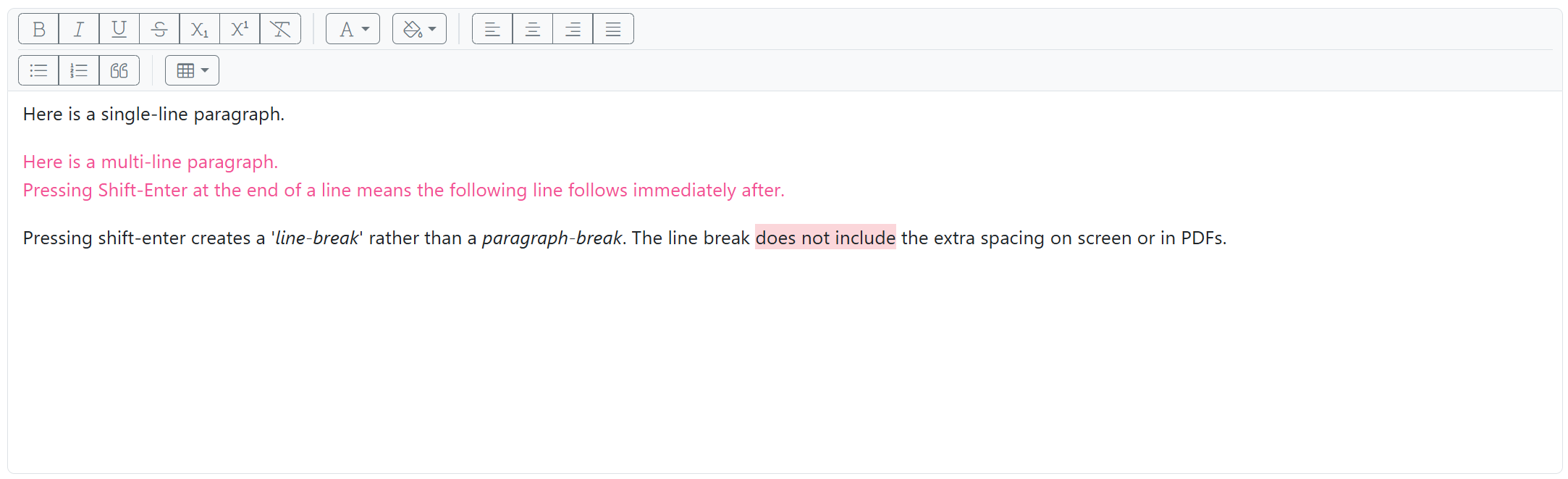
Shift + Enter |
Start a new line within the same paragraph |
Enter and Shift + Enter are not the same thing, and the difference
shows up in the printed agenda or minutes. A new paragraph is spaced away
from the one above it. A new line sits directly underneath. Use
Shift + Enter for things that belong together - a list of names, an
address - and Enter for a genuinely new point.
Agenda and minutes text
| Shortcut | Does |
|---|---|
Ctrl + U |
Underline |
Ctrl + , |
Subscript |
Ctrl + . |
Superscript |
Ctrl + Shift + 8 |
Bulleted list |
Ctrl + Shift + 7 |
Numbered list |
There are no keyboard shortcuts for the alignment buttons. Use the toolbar.
Working in tables
| Shortcut | Does |
|---|---|
Tab |
Move to the next cell |
Shift + Tab |
Move to the previous cell |
Tab in the last cell |
Add a new row |
Column widths are set automatically so that tables fit the printed page. This is deliberate: a table that has been manually sized to look right on screen will rarely be the right size on A4.
Pasting
Pasting from Word, Excel, a web page or an email is safe. The editor keeps what matters - words, bold and italic, lists, tables - and discards the formatting the source document was carrying around: fonts, sizes, and the background colour schemes that websites apply to text. These are often invisible on screen and obvious on paper, so the editor removes them for you.
Two things worth knowing:
Text colour. If you copy text that is mostly one colour - the grey body text of a web page, say - that colour is treated as the source document's ordinary text colour and removed. Colours used for emphasis within the text are kept. If you paste something short that is entirely a colour, it will arrive in black; re-apply the colour from the toolbar.
Shaded table cells. Cell shading pasted from Excel is kept. Coloured backgrounds behind ordinary text are not.
| Shortcut | Does |
|---|---|
Ctrl + Shift + V |
Paste, keeping the structure but none of the styling |
Ctrl + Shift + V keeps paragraphs, lists and tables, and strips
everything else: bold, italic, underline, colour, shading and alignment.
Use it when a normal paste brings across formatting you do not want.
To strip everything including the structure, paste into a plain text editor such as Notepad first, then copy from there.
Four toolbars, not one
CouncilPapers uses a different, deliberately restricted version of the text editor depending on what you're editing. This isn't a limitation of the software - it's intentional. Each field only offers the formatting that actually makes sense there, so a Council or Committee's public description can't accidentally end up with a table in it, and an agenda introduction stays as plain prose rather than turning into a bulleted list.
This also means: whatever a toolbar doesn't offer, you can't get into that field another way either - even pasting formatted text from Word or Excel won't smuggle in something the toolbar doesn't support. If you paste a table into a field that doesn't have a Table button, the table itself won't survive; only the surrounding text will.
| Toolbar | Where you'll meet it |
|---|---|
| Basic | Public-facing description fields - for example, a Council or Committee's public description. |
| Introduction | Agenda introduction text, and a committee's default introduction (used to pre-fill new agendas). |
| Agenda | The main text of an agenda item. |
| Minutes | Minute text - everything the Agenda toolbar offers, plus one addition (Action). |
Toolbar comparison
| Capability | Basic | Introduction | Agenda | Minutes |
|---|---|---|---|---|
| Bold, Italic | ✓ | ✓ | ✓ | ✓ |
| Underline, Strikethrough, Sub/Superscript, Remove formatting | - | - | ✓ | ✓ |
| Text colour | - | ✓ | ✓ | ✓ |
| Shading | - | - | ✓ | ✓ |
| Alignment (left / centre / right / justify) | - | - | ✓ | ✓ |
| Bullet & numbered lists | ✓ | - | ✓ | ✓ |
| Blockquote | - | - | ✓ | ✓ |
| Table | - | - | ✓ | ✓ |
| Action | - | - | - | ✓ |
The Minutes toolbar

This is the fullest of the four toolbars. Agenda looks identical, minus the red A button on the far right of the first row. Basic and Introduction are smaller still - see the comparison table above for exactly which buttons each one offers.
Icon glossary
The full range of buttons is listed below:
| Looks like | Name | Shortcut | What it does | Where you'll find it |
|---|---|---|---|---|
| B | Bold | CTRL B |
Toggles bold on the selected text | Every toolbar |
| slanted I | Italic | CTRL I |
Toggles italic on the selected text | Every toolbar |
| Underlined U | Underline | CTRL U |
Toggles underline | Agenda, Minutes |
| Strikethrough S | Strikethrough | none | Toggles a line through the selected text | Agenda, Minutes |
| Small X with a subscript "1" | Subscript | CTRL , |
Toggles subscript | Agenda, Minutes |
| Small X with a superscript "1" | Superscript | CTRL . |
Toggles superscript | Agenda, Minutes |
| Crossed-out "T" | Remove formatting | none | Strips all formatting from the selected text in one click | Agenda, Minutes |
| Letter A with a dropdown arrow | Text colour | none | Opens a colour picker for the selected text | Introduction, Agenda, Minutes |
| Paint bucket with a dropdown arrow | Shading | none | Opens a colour picker for background shading (see note below) | Agenda, Minutes |
| Horizontal lines, left-aligned | Align left | none | SLeft-aligns the current paragraph | Agenda, Minutes |
| Horizontal lines, centred | Centre | none | SCentre-aligns the current paragraph | Agenda, Minutes |
| Horizontal lines, right-aligned | Align right | none | SRight-aligns the current paragraph | Agenda, Minutes |
| Horizontal lines, evenly spread edge to edge | Justify | none | Sustifies the current paragraph | Agenda, Minutes |
| Bulleted list | Bullet list | CTRL SHIFT 8 |
Toggles a bulleted list | Basic, Agenda, Minutes |
| Numbered list ("1, 2, 3") | Numbered list | CTRL SHIFT 7 |
Toggles a numbered list | Basic, Agenda, Minutes |
| Large opening quotation mark | Blockquote | none | Toggles a blockquote (indented, distinctly styled paragraph) | Agenda, Minutes |
| Small grid with a dropdown arrow | Table | none | Opens the table menu (see below) | Agenda, Minutes |
| A red boxed A | Action | none | Marks the current paragraph as an action point | Minutes only |
The colour and shading pickers
Clicking Text colour or Shading opens a small palette rather than a full colour wheel - the choices are deliberately limited to colours that have been checked to print and display on screen sensibly. Click Clear at the bottom of either picker to remove colour entirely and return to the default.
Text colour palette: Black, Dark Grey, Teal, Parchment, White, Tropical Blue, Dark Pink.
Shading palette: Light Grey, Grey, Soft Yellow, Soft Green, Soft Red.
Shading behaves differently depending on where your cursor is. Outside a table, Shading colours the background behind the selected text - like a highlighter. Inside a table cell, Shading instead colours the whole cell, matching how a shaded cell looks when pasted in from Excel. This is intentional, not a glitch - the same button, two different effects, depending on context.
The Table menu
Clicking the Table icon opens a menu of table actions rather than a colour picker:
- Insert table (3×3) - adds a new 3-row, 3-column table with a header row, at the cursor.
- Add row below / Add column right
- Delete row / Delete column
- Toggle header row - switches the top row's styling between a plain row and a header row.
- Merge cells / Split cell
- Delete table
Most of these are only available once your cursor is actually inside a table - for example, "Add row below" is greyed out until you click into an existing table, and "Insert table" is the only option that works anywhere.
The Action button (Minutes only)
Unlike the other buttons, Action doesn't format text - it marks the whole current paragraph as an action point, used for flagging decisions of the Committee or Council, which are then rendered
accordingly in the Minutes. Toggle it with the button. A paragraph can't be both an action point and a normal paragraph at the same time - toggling it off
returns it to ordinary text. An Action point must begin with the action-verb followed by a colon - for example Resolved: to cancel..., Recommended: to support...`
Pasting from Word or Excel
When you paste text in from somewhere else - Word, Excel, a webpage - the editor automatically cleans up some of the formatting that tends to come along with it:
- Background colour tints from webpages are always removed, since they tend to look fine on screen but wrong once printed.
- Whatever colour makes up most of the pasted text is treated as its "base" colour and reset to plain black - but a smaller amount of deliberately different colour (an accent, like a highlighted warning) is left alone.
This happens automatically and only affects what you paste - content that's already saved is never touched by it. If you're pasting a table specifically, see Tables in Agendas and Minutes for the two most common problems and how to avoid them.
Last updated: 9 July 2026
See also
- Building an agenda Procedure
- Writing minutes Procedure
- Tables in Agendas and Minutes Procedure
Need more help? Contact us
Built by a councillor, for council clerks
Save hours of paperwork per meeting
Write agendas and minutes once and publish them straight to your council's website. Councillors get them in the Councillor App. No re-typing, no uploading files one by one. See the features
Records you can stand behind
Agendas and minutes are version-tracked and searchable, with public and confidential versions kept apart. That helps you stay audit-ready, though the council remains responsible for its own compliance. Overview for clerks
Open, accessible council papers
Every agenda and set of minutes has an on-screen version designed to meet WCAG 2.2 AA — the standard the Public Sector Bodies Accessibility Regulations 2018 require. Your council's data is stored in the UK. Accessibility statement
Councillors get agendas, papers and past minutes in one secure app, not a pile of email attachments. Overview for councillors
Read our story