Procedure Councillor ★ Priority
The Councillor Meeting page
The Councillor Meeting page is where a councillor can view the agenda, minutes, and other information about a meeting.
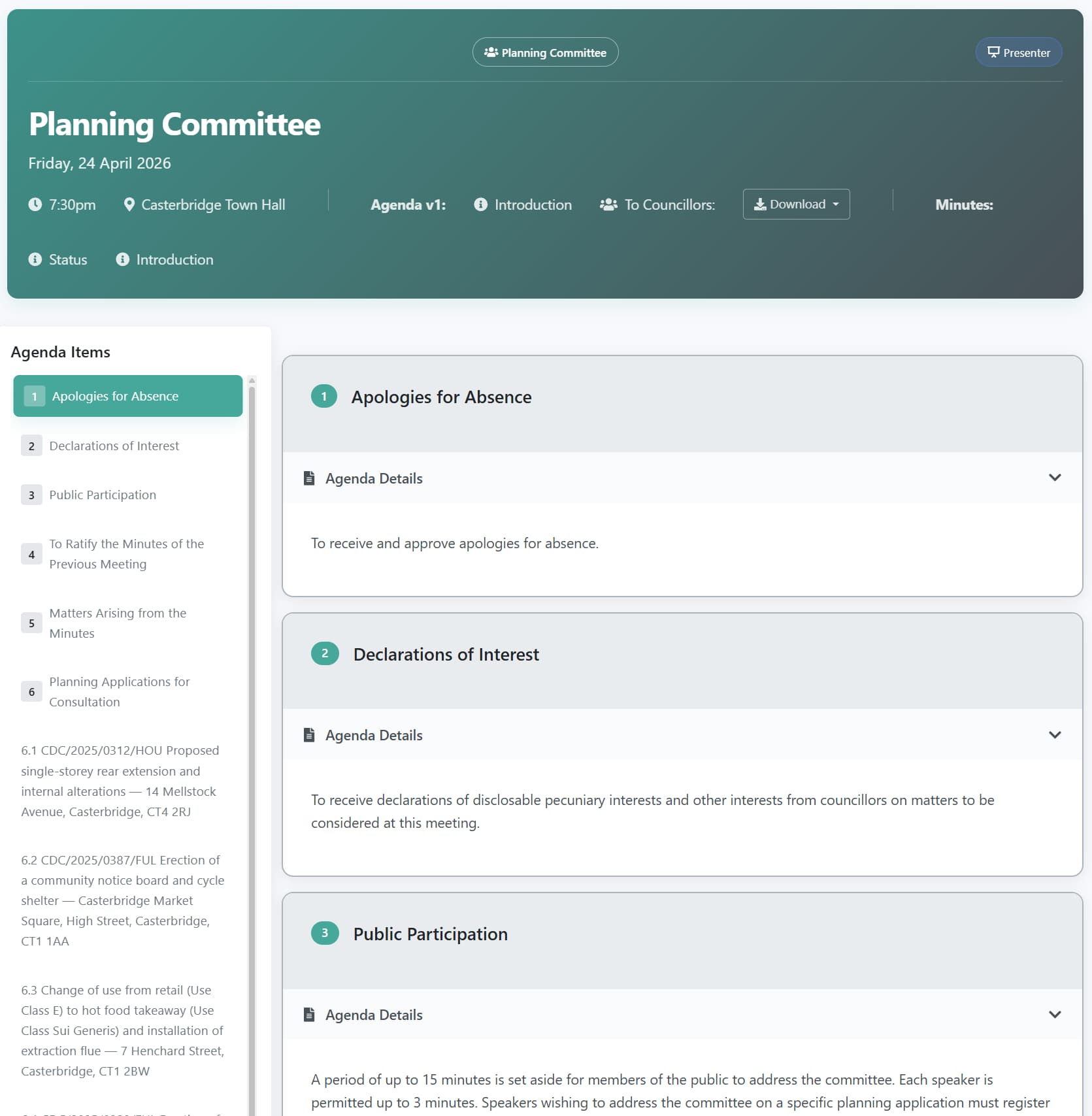
The meeting header
The meeting header shows the meeting name, date, time, and venue, alongside two sets of information:
Agenda - the version number, a link to the introduction text, the list of councillors addressed, and a Download button for PDF versions of the agenda.
Minutes - a Status link and an Introduction link. Hovering or clicking Status shows where the minutes currently are in their lifecycle:
| Status shown | Meaning |
|---|---|
| Minutes Writing | The clerk is still writing the minutes |
| Minutes Awaiting Approval & Adoption | Minutes committed, neither step complete |
| Minutes Awaiting Adoption | Approved by committee, awaiting Full Council adoption |
| Finalised Minutes Published | Both approval and adoption complete |
See The minutes lifecycle for the full explanation of this process.
Agenda items
Each agenda item is listed on the left, with the full text shown on the right. Click Agenda Details to expand or collapse the body text of an item.
Once the Minutes of the meeting have been published, the Minutes text will appear below the Agenda text for each Item.
Where a matter requiring action arose from an item, that item shows a small indicator once the minutes are published. Open the Matters requiring Action panel beneath the item to see the task, who it is allocated to, and when it is due. Any matters allocated to you are also collected in My Actions.
Items include sub-items - for example, a list of planning applications numbered 6.1, 6.2, 6.3 beneath a parent item. Each sub-item has its own full text and can be viewed independently.
Navigating the meeting
The meeting navigation bar on the left of the screen (or at the top on small screens) allows councillors to rapidly navigate between items on the agenda.
Annexes
Annexes are linked below their items. Councillors must remain logged-on to access them.
Downloading papers
Click Download in the agenda section of the header to access PDF versions of the agenda. Available versions depend on what the clerk has generated, and may include both a short version (titles only) and a long version (with annexes attached).
Tags
Where an item has a tag - for example a planning application reference - the tag appears as a clickable label beneath the item. Clicking it shows every other item across all meetings that share the same tag, making it easy to follow a topic, project, or planning application over time.
See Tagging for more on how tags work.
Confidential items
Confidential items appear in full to councillors, exactly as public items do. They are simply hidden from the public portal. There is nothing different a councillor needs to do to view a confidential item - if it is on the agenda, it is visible.
Last updated: 20 June 2026
See also
- Getting started with the Councillor App Procedure
- My Actions Procedure
- Agendas, Versions and Committing Concept
- The minutes lifecycle Concept
- Tagging Concept
Need more help? Contact us
Built by a councillor, for council clerks
Save hours of paperwork per meeting
Write agendas and minutes once and publish them straight to your council's website. Councillors get them in the Councillor App. No re-typing, no uploading files one by one. See the features
Records you can stand behind
Agendas and minutes are version-tracked and searchable, with public and confidential versions kept apart. That helps you stay audit-ready, though the council remains responsible for its own compliance. Overview for clerks
Open, accessible council papers
Every agenda and set of minutes has an on-screen version designed to meet WCAG 2.2 AA — the standard the Public Sector Bodies Accessibility Regulations 2018 require. Your council's data is stored in the UK. Accessibility statement
Councillors get agendas, papers and past minutes in one secure app, not a pile of email attachments. Overview for councillors
Read our story